SharePoint
SharePoint Quick Steps: Custom Action Buttons in Lists - Hands-On Guide
SharePoint Online now lets you add custom action buttons directly inside list views. Quick Steps can set values, draft emails, start Teams chats, or trigger Power Automate flows - all with one click. Here's a hands-on walkthrough.
SharePoint Online just gained a new column type called Quick Steps. It adds custom action buttons directly inside list views: no Power Automate required, no JSON formatting, no custom development. Select an item, click a button, and the action runs instantly.
This feature started rolling out in early March 2026. There is no official Microsoft Learn documentation yet, so this article is based on hands-on testing on a live tenant.

What are Quick Steps?
Quick Steps is a new column type in SharePoint lists. When you add this column to a list, it displays action buttons inline, right next to each item in the list view. Each button triggers a predefined action on the selected item.
Think of it as Outlook Quick Steps, but for SharePoint lists. Instead of multi-step email actions, you get multi-step list item actions.
The four action types
When creating a quick step, SharePoint offers four action types:

| Action | What it does |
|---|---|
| Set a value | Changes a column value on the selected item (e.g., set Status to "Complete") |
| Draft an email | Opens a pre-filled email draft in Outlook with configurable To, CC, subject, and an optional link to the item |
| Start a Teams chat | Opens a Teams chat window with specified recipients and an optional item link |
| Execute a flow | Triggers a Power Automate flow, passing the selected item as context |
Hands-on: Creating a "Mark as Complete" Quick Step
Here is a step-by-step walkthrough tested on a live SharePoint Online tenant.
Step 1: Create a list with a Status column
Start with any SharePoint list that has a Choice column. For this demo, a "Quick Steps Demo" list was created with a Status column (choices: New, In Progress, Complete) and four sample items.

Step 2: Add a Quick Steps column
Click + Add column in the list header. The column type picker now includes Quick steps, described as "Add custom action buttons using quick steps."

Select Quick steps, then click Next. Name the column (e.g., "Actions") and click the Add a quick step dropdown, then New quick step....
Step 3: Configure the sentence builder
Quick Steps uses a natural language sentence builder pattern. The sentence reads:
Show a command that will, for each selected item, set the value in Status to Complete
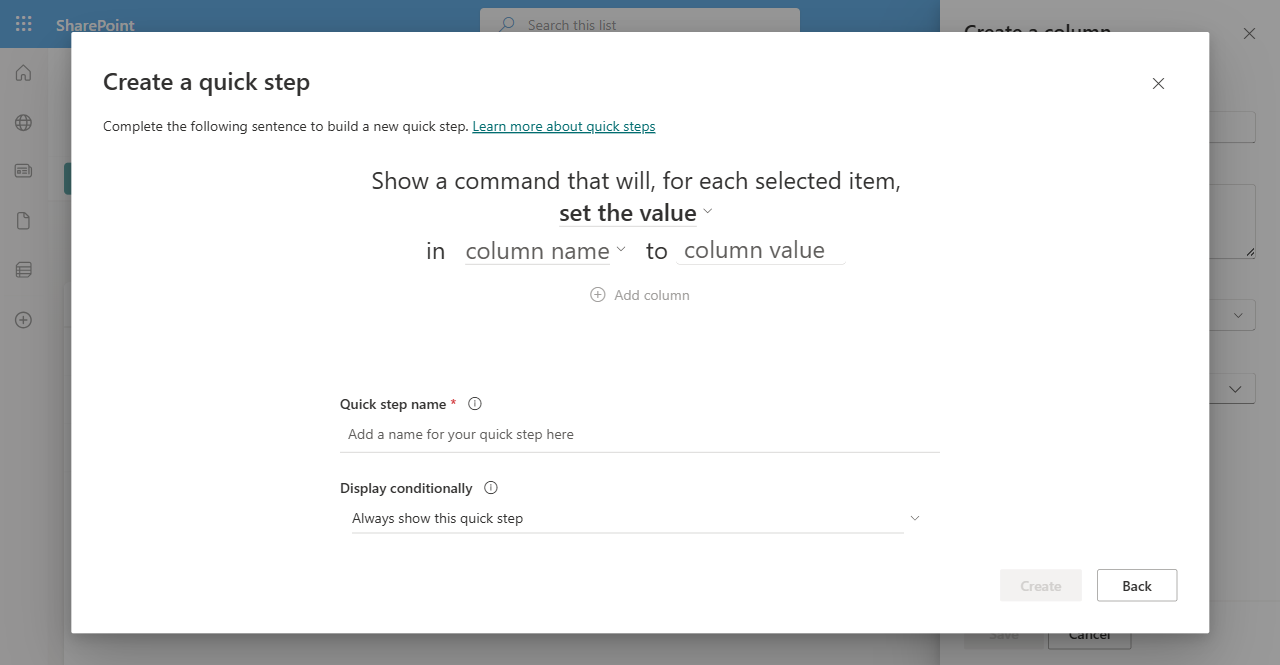
Fill in the dropdowns:
- Action: set the value
- Column: Status
- Value: Complete
- Quick step name: Mark as Complete
Step 4: Set conditional display (optional)
The Display conditionally option controls when the button appears. Set it to "Only show this quick step if" → Status → is not → Complete.
This means the button only shows on items that are not already complete, avoiding redundant clicks.
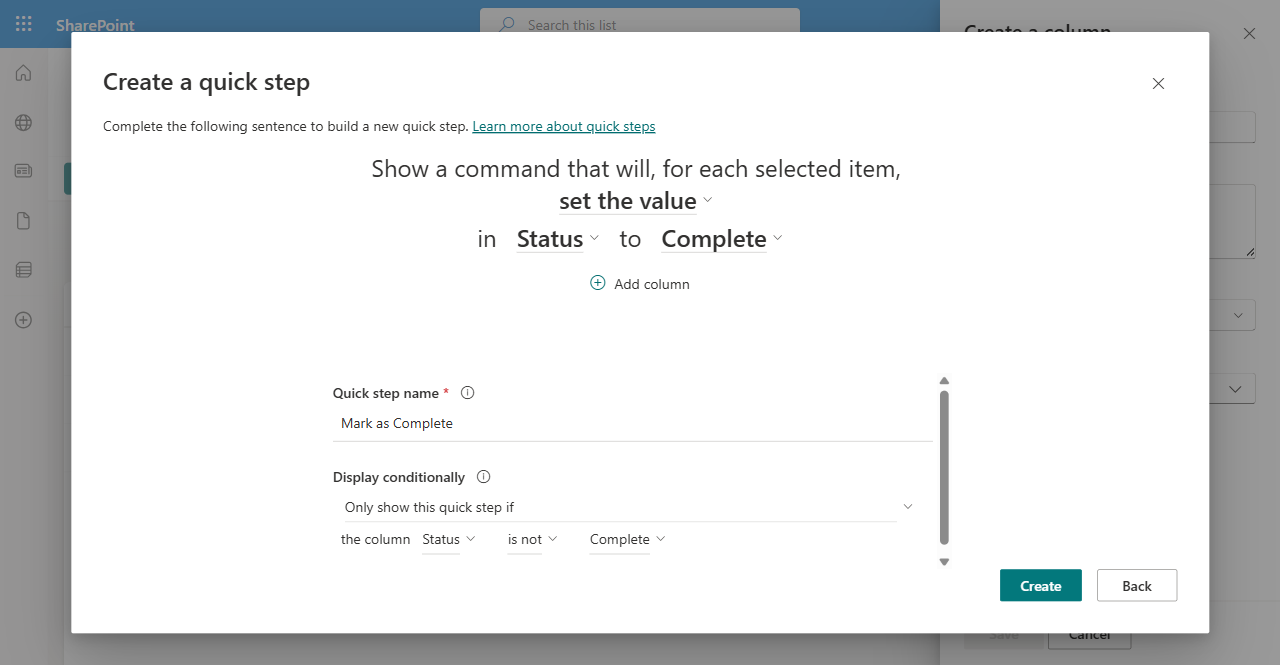
Click Create, then Save on the column panel.
Step 5: Use it
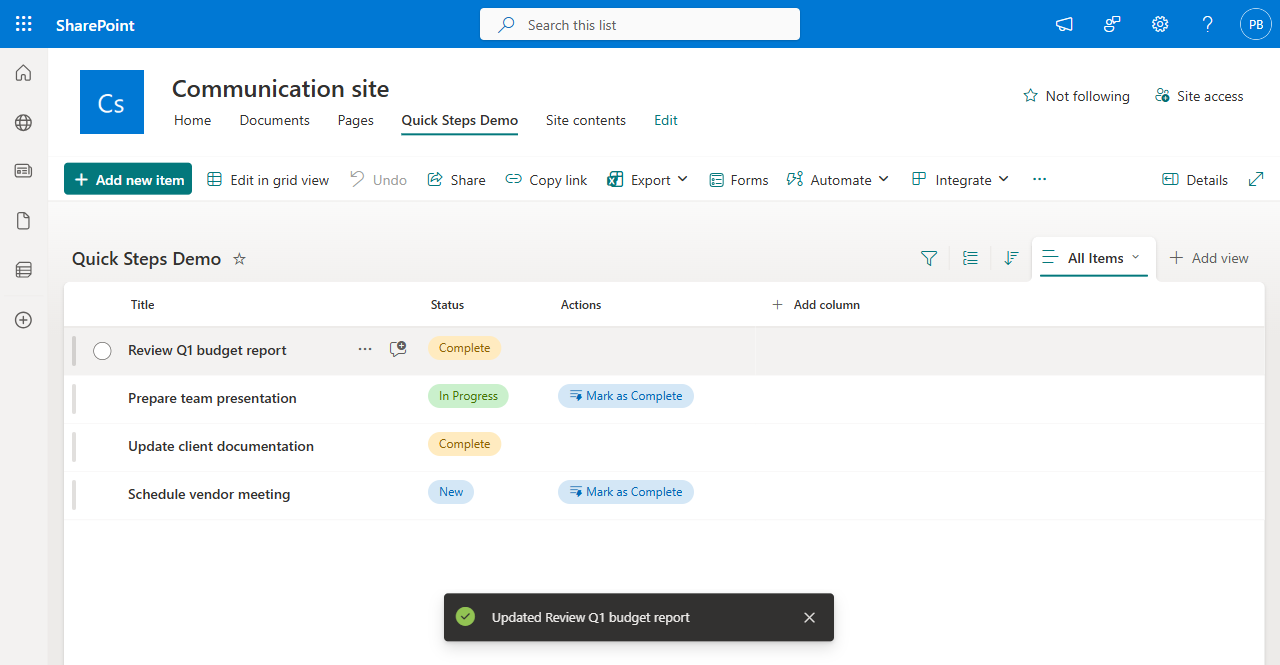
The "Actions" column now displays Mark as Complete buttons on every item where Status is not "Complete". Items already marked Complete show no button.
Click the button on any item. The status updates instantly with a confirmation toast: "Updated [item name]".
Where Quick Steps appear
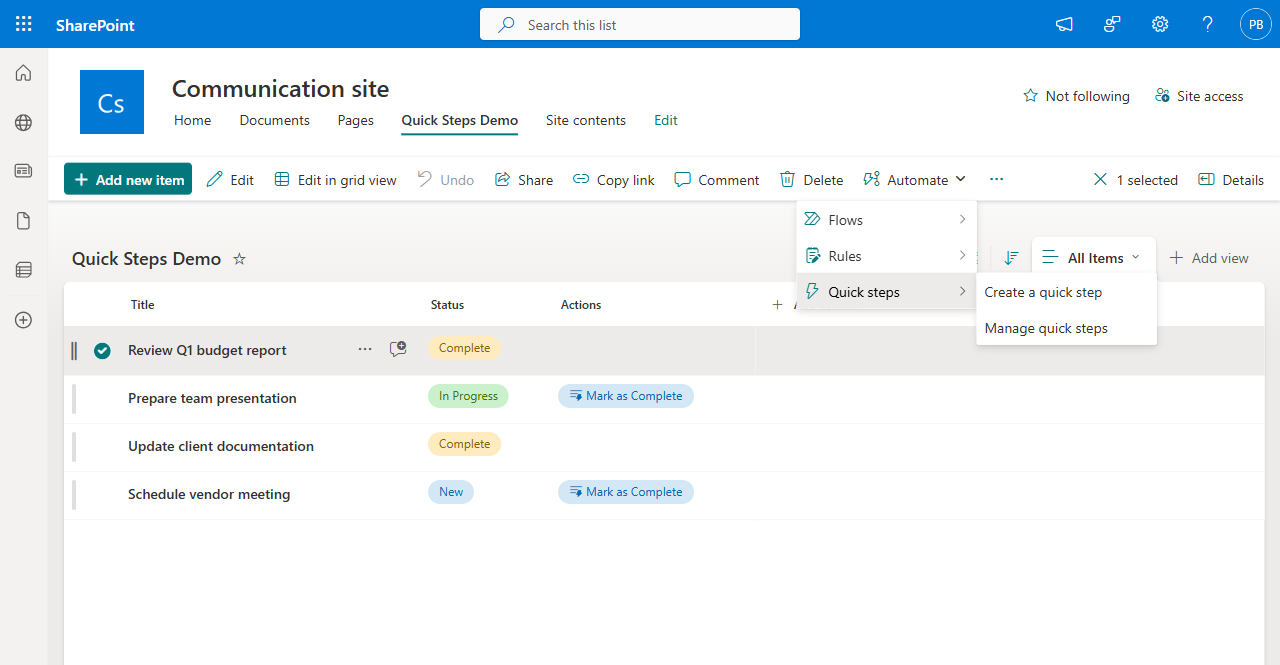
Quick steps are accessible in two places:
- Inline in the list view: as buttons in the Quick Steps column
- In the Automate menu: when one or more items are selected, go to Automate → Quick steps
The other action types
While "Set a value" is the most immediately useful, the other three actions open interesting scenarios.
Draft an email
Configure recipients (To, CC), a subject line, and optionally include a link to the list item. Clicking the button opens Outlook with a pre-filled draft, useful for sending status updates or notifications to stakeholders.
Start a Teams chat
Similar to email, but opens a Teams chat window instead. Specify recipients and an optional item link. Good for quick collaboration on specific items without leaving the list.
Execute a flow
The most powerful option. Provide a Flow ID and the quick step triggers a Power Automate flow, passing the selected item as context. This turns Quick Steps into a bridge between simple list actions and complex automation: approvals, multi-system updates, notifications to external services.
Practical use cases
| Scenario | Action type | Configuration |
|---|---|---|
| Task management | Set a value | Set Status → Complete |
| Approval workflow | Execute a flow | Trigger an approval flow |
| Client follow-up | Draft an email | Pre-fill email to client contact |
| Team escalation | Start a Teams chat | Chat with manager about the item |
| Multi-step update | Set a value (×2) | Set Status → Approved AND set Reviewer → current user |
Limitations and considerations
- Rolling out progressively: the feature may not be available on all tenants yet (March 2026)
- No official documentation: Microsoft Learn does not have Quick Steps content yet
- List-only: Quick Steps work in SharePoint lists, not document libraries (at time of writing)
- No undo: "Set a value" actions execute immediately with no confirmation dialog
- Execute a flow requires a Flow ID: the flow must already exist and be shared with the list users
- Conditional display is per-step: each quick step can have its own condition, but conditions are limited to simple column value checks
Bottom line
Quick Steps fills a gap that has existed in SharePoint lists for years: the ability to add simple, contextual actions without Power Automate, JSON column formatting, or custom SPFx extensions. For task lists, approval trackers, and lightweight project management, this is a significant quality-of-life improvement.
The sentence builder approach makes it accessible to non-technical users, while the "Execute a flow" option gives power users an escape hatch to full automation when needed.