Power Automate
VNet Data Gateway: The Complete Debug Guide
Step-by-step troubleshooting for VNet Data Gateway failures. Covers network config, DNS, auth, logs, and common errors.
The VNet Data Gateway lets Power Platform and Power BI connect to Azure data services (SQL, Synapse, Azure Data Explorer, etc.) through an Azure Virtual Network without an on-premises gateway installation. No VM to manage, no gateway service to keep alive.
When it works, it is seamless. When it does not, the error messages are among the most cryptic in the Microsoft ecosystem. This guide walks through every common failure scenario with concrete diagnostic steps.
How VNet Data Gateways Actually Work
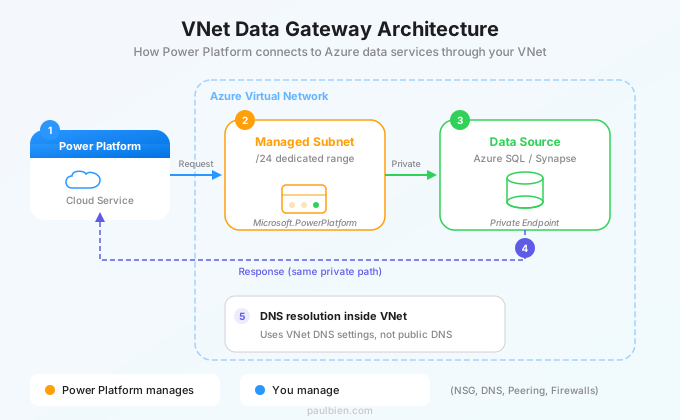
Before debugging, understand the architecture:
- Power Platform sends a data request to the Power Platform VNet service
- The service injects a managed subnet into your Azure VNet
- Traffic flows through the VNet's private address space to the target data source
- The data source responds through the same private network path
- DNS resolution happens inside the VNet (this matters enormously)
The managed subnet is delegated to Microsoft.PowerPlatform/vnetaccesslinks. Power Platform manages the networking within this subnet. You manage everything else: NSGs, DNS, peering, firewalls.
Step 1: Verify the Azure Prerequisites
Before touching logs, confirm the basics. Most VNet gateway failures are infrastructure misconfigurations.
1.1 Subnet Configuration
The VNet data gateway requires a dedicated subnet delegated to Power Platform. This subnet cannot be shared with other services.
Check in Azure Portal: Virtual Networks > Your VNet > Subnets
Verify:
- The subnet has delegation set to
Microsoft.PowerPlatform/vnetaccesslinks - The subnet has at least a /24 address range (256 addresses). Microsoft recommends /24 minimum.
- The subnet is not associated with a Network Security Group that blocks outbound traffic (more on this in Step 4)
# Azure CLI: verify subnet delegation
az network vnet subnet show \
  --resource-group myResourceGroup \
  --vnet-name myVNet \
  --name powerplatform-subnet \
  --query "delegations[].serviceName" \
  --output tsv
Expected output: Microsoft.PowerPlatform/vnetaccesslinks
If the delegation is missing or incorrect, the gateway creation will fail with a generic "provisioning failed" error.
1.2 Resource Provider Registration
The Microsoft.PowerPlatform resource provider must be registered in your Azure subscription.
az provider show --namespace Microsoft.PowerPlatform --query "registrationState" --output tsv
If it returns NotRegistered:
az provider register --namespace Microsoft.PowerPlatform
# Wait 2-5 minutes, then verify
az provider show --namespace Microsoft.PowerPlatform --query "registrationState" --output tsv
1.3 Region Alignment
The VNet data gateway, the Azure VNet, and the Power Platform environment must be in the same Azure region. There is no cross-region support.
Common trap: Power Platform environments show regions as "Europe" or "United States," while Azure uses specific regions like "West Europe" or "East US 2." The mapping is:
| Power Platform Region | Azure Region(s) |
|---|---|
| Europe | West Europe, North Europe |
| United States | East US, West US, Central US |
| United Kingdom | UK South, UK West |
| Australia | Australia East, Australia Southeast |
| Canada | Canada Central, Canada East |
If your VNet is in "France Central" but your Power Platform environment is in "Europe" (mapped to West Europe), it will not work. You need the VNet in West Europe or North Europe.
Step 2: Verify Gateway Creation and Status
2.1 Check Gateway Status in Power Platform Admin Center
Navigate to: Power Platform Admin Center > Data (preview) > Virtual network data gateways
The gateway should show status "Active". Common statuses and their meanings:
| Status | Meaning | Action |
|---|---|---|
| Active | Working normally | N/A |
| Provisioning | Still being created | Wait 5-10 minutes |
| Error | Creation failed | Check subnet delegation and permissions |
| Inactive | Disabled or expired | Re-create the gateway |
2.2 Check via PowerShell
# Requires Power Platform admin or gateway admin role
Get-DataGatewayCluster -GatewayType VirtualNetwork | Format-Table Name, Status, Region
If the gateway does not appear in the list, it was not created successfully. Go back to Step 1.
Step 3: DNS Resolution Failures
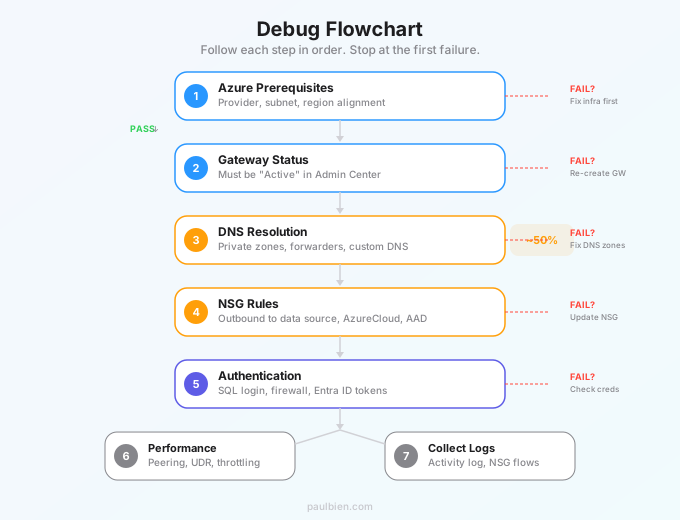
DNS is the cause of approximately 50% of VNet gateway connection failures. The symptom is always the same: "Unable to connect to the data source" with no useful detail.
3.1 How DNS Works in This Context
The VNet data gateway resolves hostnames using whatever DNS is configured on the VNet. It does not use public DNS by default.
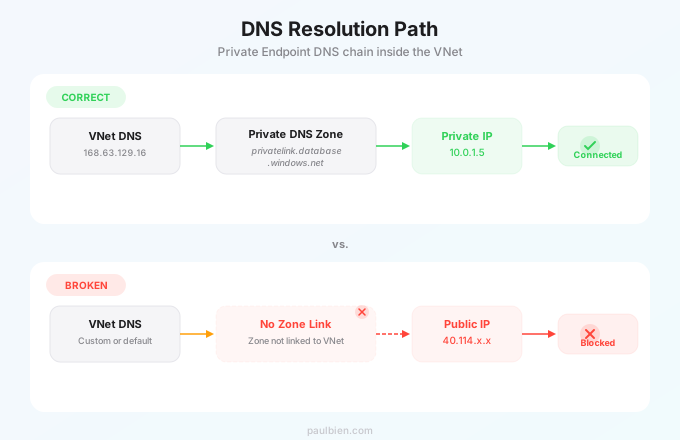
If your target is an Azure SQL database at myserver.database.windows.net and you are using Private Endpoints, the DNS resolution chain is:
- VNet DNS setting points to Azure DNS (168.63.129.16) or a custom DNS server
- The private DNS zone
privatelink.database.windows.netresolves to the private IP - The gateway connects to the private IP through the VNet
If any link in this chain is broken, the connection fails.
3.2 Diagnostic: Test DNS from Inside the VNet
Deploy a temporary test VM in the same VNet (different subnet is fine) and test resolution:
# From a VM inside the VNet
Resolve-DnsName "myserver.database.windows.net" -Type A
Expected result with Private Endpoint:
Name       : myserver.privatelink.database.windows.net
Type       : A
IPAddress  : 10.0.1.5   # Private IP from your VNet range
Bad result (public resolution despite Private Endpoint):
Name       : myserver.database.windows.net
Type       : A
IPAddress  : 40.114.x.x  # Public Azure IP
If DNS resolves to a public IP when you expect private, check:
- The Private DNS Zone
privatelink.database.windows.netis linked to the VNet - The VNet DNS settings point to Azure DNS (168.63.129.16) or a DNS forwarder that forwards to Azure DNS
- If using custom DNS (Active Directory DNS, for example), conditional forwarders for
database.windows.netmust point to 168.63.129.16
3.3 Custom DNS Server Pitfalls
Enterprise environments almost always use custom DNS servers (usually Active Directory-integrated). This introduces two failure modes:
Failure 1: DNS server not in the VNet. If the custom DNS server is on-premises or in a different VNet, the VNet data gateway cannot reach it unless VNet peering and routing are correctly configured.
Failure 2: Missing conditional forwarders. The custom DNS server must forward Azure Private Link zones to 168.63.129.16. Without this, private endpoints resolve to public IPs and the connection either fails (if the firewall blocks public access) or bypasses your private network entirely.
# On the custom DNS server: add conditional forwarder
Add-DnsServerConditionalForwarderZone `
  -Name "database.windows.net" `
  -MasterServers 168.63.129.16 `
  -ReplicationScope "Forest"
Step 4: Network Security Group (NSG) Blocks
NSGs on the gateway subnet can block Power Platform's managed traffic.
4.1 Required Outbound Rules
The VNet data gateway subnet needs outbound access to:
| Destination | Port | Protocol | Purpose |
|---|---|---|---|
| Your data source (SQL, etc.) | 1433 (SQL), 443 (HTTPS) | TCP | Data queries |
AzureCloud service tag | 443 | TCP | Power Platform service communication |
AzureActiveDirectory service tag | 443 | TCP | Authentication |
4.2 Diagnosing NSG Blocks
Enable NSG flow logs on the subnet's NSG and check for denied traffic:
# Check NSG rules on the subnet
az network nsg rule list \
  --resource-group myResourceGroup \
  --nsg-name myNSG \
  --output table
Look for any Deny rules that match traffic on ports 443 or 1433 to the service tags above.
Common mistake: A "Deny All Outbound" rule at priority 4000 that blocks the gateway's management traffic. The gateway appears active but cannot reach any data source.
4.3 Quick Fix Test
Temporarily remove or loosen the NSG from the gateway subnet. If the connection works, the NSG is the problem. Then add back rules incrementally:
- Allow outbound to your data source's private IP on the required port
- Allow outbound to
AzureCloudon 443 - Allow outbound to
AzureActiveDirectoryon 443 - Deny everything else
Step 5: Authentication and Permission Errors
The gateway is connected, DNS resolves, traffic flows, but the connection still fails. This is usually an authentication problem.
5.1 "Login failed for user" on SQL Server
The VNet data gateway does not change how authentication works. It only changes the network path. The service account or connection credentials must:
- Exist in the target database
- Have the required permissions (db_datareader, db_datawriter, etc.)
- Be allowed to connect from the private IP range of the gateway subnet
-- On Azure SQL: verify the user exists and has access
SELECT dp.name, dp.type_desc, p.permission_name
FROM sys.database_principals dp
LEFT JOIN sys.database_permissions p ON dp.principal_id = p.grantee_principal_id
WHERE dp.name = 'your_service_account';
5.2 Azure SQL Firewall Configuration
If the Azure SQL server has "Deny public network access" enabled (as it should with Private Endpoints), the firewall rules are not relevant. Traffic arrives via the private IP and bypasses the firewall.
However, if "Allow Azure services and resources to access this server" is disabled and you do not have a Private Endpoint, the connection will fail. The VNet data gateway traffic does not qualify as "Azure services" in this firewall context.
The correct configuration for VNet data gateway + Azure SQL:
- Private Endpoint enabled on the SQL server, linked to the VNet
- "Deny public network access" = Yes
- No firewall rules needed (traffic is private)
5.3 OAuth / Entra ID Authentication Failures
When using Entra ID (formerly Azure AD) authentication with the VNet gateway, the token request goes through the public internet to login.microsoftonline.com, not through the VNet. Ensure:
- The gateway subnet allows outbound HTTPS to
AzureActiveDirectoryservice tag - The service principal or managed identity has the correct Azure SQL roles
- The token audience is
https://database.windows.net/(nothttps://management.azure.com/)
Step 6: Connection Timeout and Performance Issues
The gateway works but queries are slow or time out.
6.1 Check VNet Peering
If the data source is in a different VNet connected via peering:
az network vnet peering list \
  --resource-group myResourceGroup \
  --vnet-name myVNet \
  --output table
Verify:
- Peering status is "Connected" (not "Initiated" or "Disconnected")
- "Allow forwarded traffic" is enabled on both sides if using a hub-spoke topology
- "Allow gateway transit" / "Use remote gateways" are configured correctly if an ExpressRoute or VPN gateway is involved
6.2 Check for Route Table Issues
User-defined routes (UDRs) on the gateway subnet can redirect traffic through a firewall appliance (Azure Firewall, NVA), adding latency or causing drops.
az network route-table route list \
  --resource-group myResourceGroup \
  --route-table-name myRouteTable \
  --output table
If a default route (0.0.0.0/0) points to a virtual appliance, that appliance must allow and not inspect/break TLS on the gateway's traffic.
6.3 Check Power Platform Request Limits
The VNet data gateway is still subject to Power Platform API request limits and Dataverse throttling. If flows or apps using the gateway make thousands of requests per minute, throttling errors will appear as timeouts.
Check the Power Platform Admin Center > Analytics > Capacity to see if API request limits are being hit.
Step 7: Collecting Diagnostic Logs
When all else fails, gather logs for a support case.
7.1 Azure Activity Log
az monitor activity-log list \
  --resource-group myResourceGroup \
  --start-time 2026-01-28T00:00:00Z \
  --query "[?contains(resourceType, 'PowerPlatform')].{Time:eventTimestamp, Operation:operationName.localizedValue, Status:status.localizedValue, Detail:properties.statusMessage}" \
  --output table
7.2 Power Platform Self-Service Diagnostics
In the Power Platform Admin Center:
- Go to Help + Support > New support request
- Select "Run diagnostics" before creating the ticket
- The diagnostic tool checks VNet configuration, DNS, and connectivity automatically
7.3 NSG Flow Logs in Log Analytics
If NSG flow logs are enabled and sent to a Log Analytics workspace:
AzureNetworkAnalytics_CL
| where SubType_s == "FlowLog"
| where SrcIP_s startswith "10.0.2"  // Your gateway subnet range
| where FlowStatus_s == "D"         // Denied flows
| project TimeGenerated, SrcIP_s, DestIP_s, DestPort_d, FlowStatus_s
| order by TimeGenerated desc
| take 50
This reveals exactly which traffic the NSG is blocking.
The Complete Troubleshooting Checklist
Run through this in order. Stop at the first failure:
- Resource provider
Microsoft.PowerPlatformregistered - Subnet delegated to
Microsoft.PowerPlatform/vnetaccesslinks - Subnet is /24 or larger
- Gateway region matches VNet region matches Power Platform environment region
- Gateway status is "Active" in Admin Center
- DNS resolves target hostname to the expected (private) IP from within the VNet
- Private DNS zones linked to the VNet (if using Private Endpoints)
- NSG allows outbound to data source, AzureCloud, and AzureActiveDirectory on 443/1433
- No UDR blocking or misrouting traffic
- VNet peering status is "Connected" (if data source is in another VNet)
- Database credentials are valid and have required permissions
- Azure SQL firewall or Private Endpoint configured correctly
- API request limits not exhausted
Work through this list methodically and you will find the issue. VNet data gateway failures are never mysterious: they are always a network, DNS, or permissions misconfiguration hiding behind an unhelpful error message.