Power Apps
The 5 Delegation Mistakes Killing Your Power App
Delegation errors silently break Power Apps at scale. Learn the 5 most common mistakes and proven workarounds to fix them.
Delegation is the single most misunderstood concept in Power Apps. Your app works perfectly with 50 test records, passes UAT, ships to production, and then silently returns incomplete data when the table hits 501 rows. No error. No warning. Just wrong results.
Here are the five delegation mistakes that cause this, and how to fix every one of them.
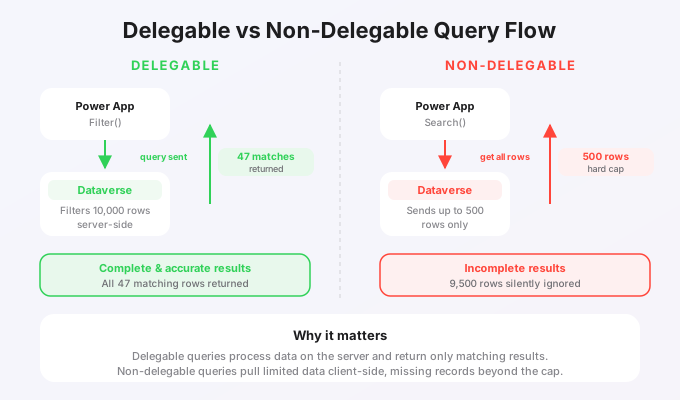
1. Using Search() Instead of Filter() with StartsWith
Search() is never delegable to Dataverse or SharePoint. It looks convenient, but it pulls the entire table client-side before filtering. For a table with 10,000 records, that means loading all 10,000 rows over the network, then filtering in the browser.
The broken pattern:
Search(Accounts, TextInput1.Text, "name")
This caps at the delegation limit (default 500, max 2,000) and silently ignores everything beyond it.
The fix:
Filter(
    Accounts,
    StartsWith(Name, TextInput1.Text)
)
StartsWith is delegable to Dataverse. If you need a "contains" search, you have two options:
- Dataverse Search via the
Searchconnector (returns relevance-ranked results, supports fuzzy matching) - Collect to a local collection at app start if the dataset is small enough (under 2,000 records)
// On App.OnStart — only for small reference tables
ClearCollect(
    colAccounts,
    Accounts
);

// Then use Search on the local collection
Search(colAccounts, TextInput1.Text, "name")
2. CountRows() on Large Tables
CountRows() is not delegable. This means the following formula only counts the first 500 (or 2,000) records, then stops:
// Returns 500, not the actual count
CountRows(Filter(Orders, Status = "Pending"))
This is dangerous because the number looks correct until the dataset crosses the threshold. Dashboards, KPIs, and approval counters all show the wrong number.
The fix: use aggregate functions or views.
For Dataverse, use the CountIf pattern with a pre-filtered view, or call a Power Automate flow that uses FetchXML aggregation:
// Delegable alternative: use a Dataverse view
CountRows(
    Filter(
        Accounts,
        'Account Status' = 'Account Status (Accounts)'.Active
    )
)
Better yet, for true counts at scale, create a Power Automate flow with a FetchXML aggregate query and call it from your app:
<fetch aggregate="true">
  <entity name="salesorder">
    <attribute name="salesorderid" alias="count" aggregate="count"/>
    <filter>
      <condition attribute="statuscode" operator="eq" value="1"/>
    </filter>
  </entity>
</fetch>
3. Chaining Non-Delegable Functions Inside Filter()
Each function inside Filter() must be independently delegable. One non-delegable function breaks the entire expression.
The broken pattern:
Filter(
    Projects,
    Status = "Active",
    Year(CreatedOn) = 2026,          // NOT delegable
    User().Email = AssignedTo.Email   // NOT delegable
)
Year(), Month(), Day(), Hour() are not delegable. Neither is User() inside a delegation context.
The fix: restructure comparisons to use delegable operators.
Filter(
    Projects,
    Status = "Active",
    CreatedOn >= Date(2026, 1, 1),
    CreatedOn < Date(2027, 1, 1),
    AssignedTo.Email = varCurrentUserEmail
)
Store User().Email in a variable at app start:
// App.OnStart
Set(varCurrentUserEmail, User().Email);
Then reference the variable inside Filter(). Variable comparisons are delegable; function calls are not.
4. Ignoring the Delegation Limit Setting
The default delegation limit is 500 rows. Many developers never change it. The maximum is 2,000 rows. Neither number is large enough for production data.
Where to change it: Settings > General > Data row limit for non-delegable queries.
Set it to 2,000 immediately. But understand: 2,000 is still a hard cap. It does not solve delegation. It only buys time before the same bug resurfaces.
The real fix is eliminating non-delegable patterns entirely. Use the delegation limit increase as a safety net, not a solution.
Checklist:
- Set delegation limit to 2,000 in every app
- Enable the formula-level delegation warnings in settings
- Search your entire app for the yellow delegation triangle
- For every warning, either refactor to delegable functions or explicitly document why the limit is acceptable (e.g., a lookup table with 200 rows)
5. Using LookUp() with Complex Conditions
LookUp() itself is delegable, but developers often stuff non-delegable functions inside it:
// Non-delegable: Text() is not delegable
LookUp(
    Invoices,
    Text(InvoiceNumber, "INV-0000") = TextInput1.Text
)
The fix: keep LookUp conditions simple and delegable.
LookUp(
    Invoices,
    InvoiceNumber = Value(TextInput1.Text)
)
If you need text formatting for display, do it after the lookup, not inside the filter condition:
Set(
    varInvoice,
    LookUp(Invoices, InvoiceNumber = Value(TextInput1.Text))
);

// Format for display separately
Set(
    varInvoiceDisplay,
    Text(varInvoice.InvoiceNumber, "INV-0000")
);
The Delegation Debugging Workflow
When an app misbehaves with large datasets, follow this sequence:
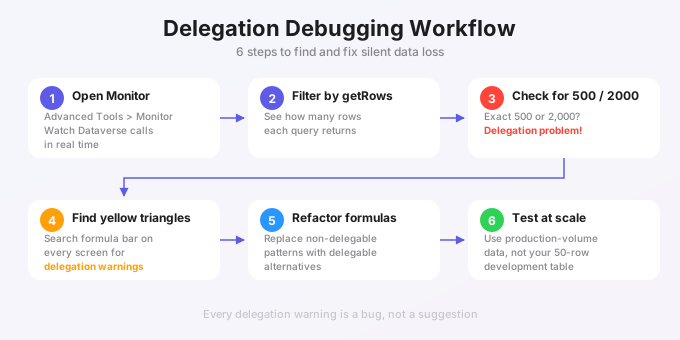
- Open Monitor (Advanced Tools > Monitor) and watch Dataverse calls
- Filter Monitor by "getRows" to see how many rows each query returns
- If you see exactly 500 or 2,000 rows, you have a delegation problem
- Search the formula bar for yellow triangle icons across all screens
- Refactor using the patterns above
- Test with production-scale data, not your 50-row dev table
Quick Reference: Delegable vs Non-Delegable
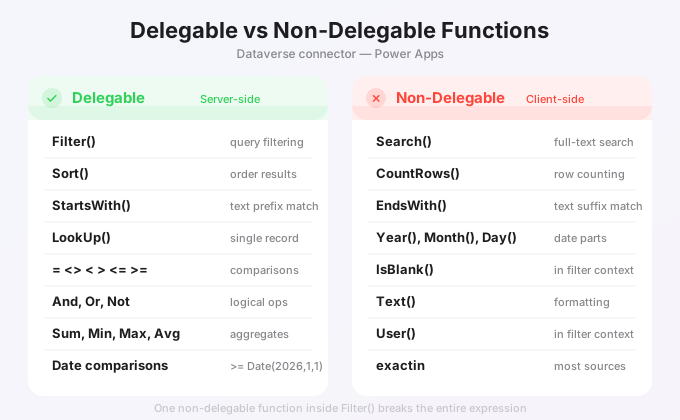
| Delegable (Dataverse) | Not Delegable |
|---|---|
Filter | Search |
Sort | SortByColumns (partially) |
StartsWith | EndsWith |
=, <>, <, >, <=, >= | exactin (for most sources) |
And, Or, Not | IsBlank (in filter context) |
LookUp (simple conditions) | Year, Month, Day, Hour |
Sum, Min, Max, Avg (Dataverse) | CountRows |
Delegation is not optional complexity. It is the line between an app that works and an app that works correctly. Every Power Apps project should include a delegation review before go-live, no exceptions.