Copilot Studio
Building an AI IT Helpdesk Agent with Copilot Studio + Dataverse
A step-by-step guide to building a zero-code, zero-flow IT helpdesk agent using Microsoft Copilot Studio, Dataverse, and GPT-4.1 - from data model to knowledge-grounded support.
Seventy percent of Level 1 IT support tickets have a documented solution somewhere in the knowledge base. The problem is not a lack of answers: it is that employees cannot find them fast enough, and helpdesk teams spend hours repeating the same troubleshooting steps.
What if an AI agent could handle that first line of support? Not a chatbot with rigid decision trees, but a knowledge-grounded agent that understands natural language, searches a structured knowledge base, and walks users through solutions step by step.
This article walks through building exactly that: using Microsoft Copilot Studio, Dataverse, and GPT-4.1 as the orchestration model. No Power Automate flows. No custom code. Just configuration and a well-designed data model.
See It in Action
Before diving into the technical details, here is the end result. The animated diagram below shows the full conversation flow, from question to resolution:
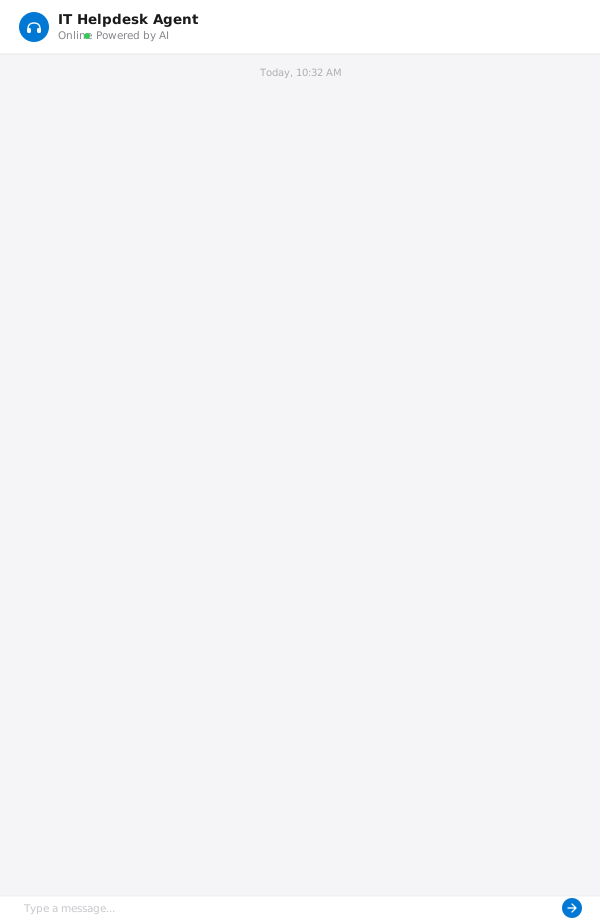
The complete agent workflow: user question, KB search in 1.87s, 5 troubleshooting steps, and automatic ticket creation if unresolved.
And here is the real POC running in Copilot Studio's test pane:
Screenshot not reproduced: it contains a private environment label. VPN troubleshooting demo A VPN troubleshooting query returns a grounded, step-by-step response in under 2 seconds: zero code, zero flows.
Convinced? Let's break down how to build this.
Architecture Overview
The architecture follows a simple but powerful pattern:
- Copilot Studio serves as the conversational AI layer: it receives user queries, reasons about intent, and orchestrates tool calls
- Dataverse provides the structured data backend: knowledge base articles, ticket records, and category metadata
- GPT-4.1 powers the reasoning engine: understanding queries, searching for relevant articles, and generating step-by-step instructions
User Question
    |
    v
Copilot Studio (GPT-4.1)
    |
    +---> Dataverse: Search KB Articles
    |         |
    |         v
    |     Return matching articles
    |
    +---> Dataverse: Create/Update Tickets
    |
    v
Grounded Response + Source Citations
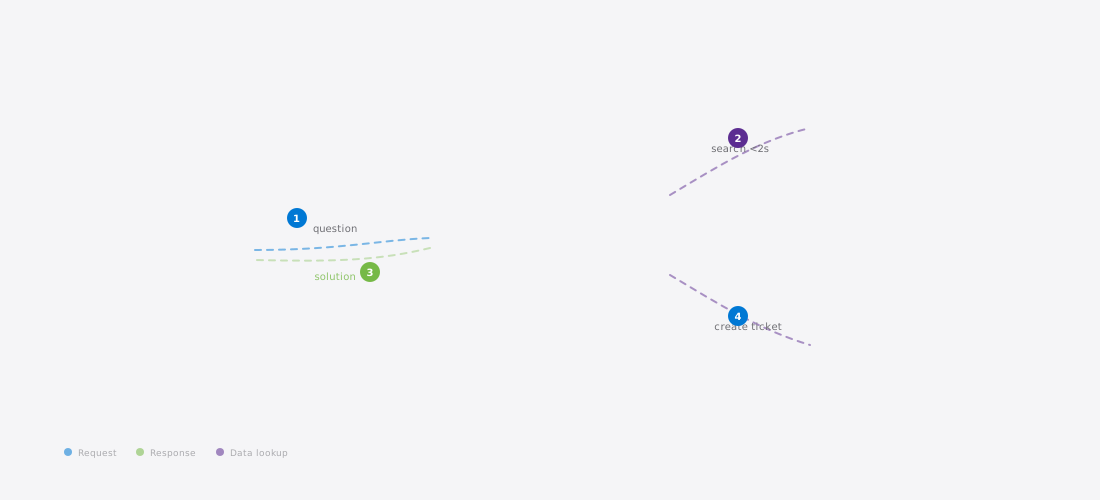
End-to-end architecture: the user query flows through Copilot Studio (GPT-4.1), which orchestrates knowledge base search and ticket operations via native Dataverse connectors.
The key design decision: zero flows. Every data operation happens through Copilot Studio's native Dataverse connector actions (List rows, Add row, Get row, Update row). This eliminates the complexity of managing Power Automate flows, connection references, and solution layering.
Step 1: The Data Model

The three Dataverse tables and their relationships: Categories feed both KB Articles and Tickets via lookup fields.
Three Dataverse tables form the backbone of the system.
Categories Table (pblab_category)
A simple lookup table that organizes knowledge and tickets by domain.
| Column | Type | Purpose |
|---|---|---|
pblab_name | Text (Primary) | Category name |
pblab_description | Text | What the category covers |
pblab_icon | Text | Emoji icon for display |
Seed categories: Network & VPN, Account & Password, Hardware & Printing, Email & Calendar, Security & Compliance, Software & Licensing, Onboarding.
Knowledge Base Articles Table (pblab_kbarticle)
This is where the agent's intelligence lives: structured articles with step-by-step solutions.
| Column | Type | Purpose |
|---|---|---|
pblab_title | Text (Primary) | Article title |
pblab_content | Multiline Text | Full solution content (Markdown) |
pblab_symptoms | Multiline Text | Searchable symptom keywords |
pblab_category | Lookup | Link to category |
pblab_difficulty | Choice | Easy / Medium / Hard |
pblab_platform | Choice | Windows / macOS / Both / Mobile |
pblab_estimatedtime | Text | Resolution time estimate |
The pblab_symptoms field is the secret weapon. By populating it with natural language variations of how users describe problems ("VPN won't connect", "can't reach internal sites", "network timeout"), the agent's search becomes dramatically more accurate.
Tickets Table (pblab_ticket)
For tracking issues that need human intervention or cannot be resolved by the knowledge base alone.
| Column | Type | Purpose |
|---|---|---|
pblab_title | Text (Primary) | Ticket summary |
pblab_description | Multiline Text | Full problem description |
pblab_status | Choice | New / In Progress / Waiting / Resolved / Closed |
pblab_priority | Choice | Low / Medium / High / Critical |
pblab_category | Lookup | Link to category |
pblab_resolution | Multiline Text | How it was resolved |
Step 2: Seeding Data with Python + Dataverse Web API
An empty knowledge base is useless. Seeding realistic data upfront is essential for testing and demonstrating the agent.
The approach: Python scripts that authenticate via Azure CLI tokens and push records through the Dataverse Web API. No SDK dependencies, no service principal setup: just HTTP calls with a bearer token.
Authentication Pattern
import subprocess
import json
import requests

def get_dataverse_token(org_url):
    """Get a Dataverse access token via Azure CLI."""
    result = subprocess.run(
        ["az", "account", "get-access-token",
         "--resource", org_url,
         "--query", "accessToken", "-o", "tsv"],
        capture_output=True, text=True
    )
    return result.stdout.strip()

ORG_URL = "https://your-org.crm.dynamics.com"
token = get_dataverse_token(ORG_URL)

headers = {
    "Authorization": f"Bearer {token}",
    "Content-Type": "application/json",
    "OData-MaxVersion": "4.0",
    "OData-Version": "4.0",
    "Prefer": "return=representation"
}
Seeding Knowledge Base Articles
articles = [
    {
        "pblab_title": "VPN Connection Troubleshooting",
        "pblab_content": """## VPN Connection Issues

### Quick Fix Steps
1. Disconnect and reconnect the VPN client
2. Check your internet connection is stable
3. Restart the VPN application
4. Verify your credentials have not expired
5. Try connecting to a different VPN server

### Advanced Troubleshooting
- Clear DNS cache: `ipconfig /flushdns`
- Reset network adapter: Settings > Network > Advanced
- Check if split tunneling is configured correctly
- Verify the VPN gateway is reachable: `ping vpn.company.com`

### Common Error Codes
- **Error 800**: VPN server unreachable — check firewall
- **Error 691**: Invalid credentials — reset password
- **Error 812**: Authentication method mismatch — contact IT""",
        "pblab_symptoms": "VPN not connecting, can't reach internal sites, "
                         "network timeout, remote access broken, tunnel failed",
        "pblab_difficulty": yourorg_difficulty_easy,  # Choice value
        "pblab_platform": yourorg_platform_windows,
        "pblab_estimatedtime": "5-10 minutes",
        "pblab_Category@odata.bind": f"/pblab_categories({network_category_id})"
    },
    # ... 11 more articles covering passwords, printers,
    #     Outlook, MFA, onboarding, etc.
]

for article in articles:
    response = requests.post(
        f"{ORG_URL}/api/data/v9.2/pblab_kbarticles",
        headers=headers,
        json=article
    )
    print(f"Created: {article['pblab_title']} — {response.status_code}")
A total of 12 knowledge base articles were seeded covering the most common IT support scenarios: VPN troubleshooting, password resets, printer setup, Outlook configuration, MFA enrollment, software installation, new employee onboarding, and more.
Step 3: Agent Configuration
Creating the Agent in Copilot Studio
The agent is created in Copilot Studio with GPT-4.1 as the orchestration model: the latest model available, offering improved instruction following and tool use compared to GPT-4o.
Screenshot not reproduced: it contains a private environment label. Agent overview in Copilot Studio The IT Help Desk Assistant overview in Copilot Studio, showing custom instructions and GPT-4.1 model selection.
The critical piece is the system instructions: the prompt that shapes how the agent behaves. Here is the structure that works well:
You are the IT Help Desk Assistant, an AI-powered support agent.

ROLE: Provide first-line IT support by searching the knowledge base
and guiding users through solutions step by step.

BEHAVIOR:
1. When a user describes a problem, search the knowledge base first
2. If a matching article is found, present the solution step by step
3. Always cite the source article title
4. If no article matches, offer to create a support ticket
5. Ask clarifying questions when the problem is ambiguous

TONE: Professional, patient, helpful. Use numbered steps for
instructions. Avoid jargon when possible.

KNOWLEDGE SOURCES:
- Dataverse table: pblab_kbarticle (search by symptoms and title)
- Dataverse table: pblab_category (for categorization)
- Dataverse table: pblab_ticket (for ticket creation)
Updating Instructions via API
For programmatic updates to the agent instructions (useful during iterative development), the Dataverse Web API exposes the botcomponent entity. The GPT instructions live in a component of type 15:
# Fetch the GPT component
filter_url = (
    f"{ORG_URL}/api/data/v9.2/botcomponents"
    f"?$filter=_parentbotid_value eq '{bot_id}'"
    f" and componenttype eq 15"
    f"&$select=botcomponentid,content"
)
response = requests.get(filter_url, headers=headers)
component = response.json()["value"][0]

# Update the instructions
import json
content = json.loads(component["content"])
content["instructions"] = new_instructions

requests.patch(
    f"{ORG_URL}/api/data/v9.2/botcomponents({component['botcomponentid']})",
    headers=headers,
    json={"content": json.dumps(content)}
)
Adding Knowledge Sources
In Copilot Studio, navigate to Knowledge and add the Dataverse tables as knowledge sources. The agent will use these to ground its responses:
- Add
pblab_kbarticle: this is the primary knowledge source - Configure searchable columns:
pblab_title,pblab_content,pblab_symptoms - The agent will automatically search across these columns when answering questions
Screenshot not reproduced: it contains a private environment label. Knowledge base search sources The Knowledge search sources panel showing ITKnowledgeBase results returned from Dataverse.
Step 4: Dataverse Tools and DLP Configuration
Adding Connector Actions
Copilot Studio can call Dataverse directly through connector actions. In the agent configuration, add the following actions from the Microsoft Dataverse connector:
- List rows: search and filter knowledge base articles
- Get a row by ID: retrieve full article details
- Add a new row: create support tickets
- Update a row: update ticket status
These actions give the agent full CRUD capability on Dataverse tables without a single Power Automate flow.
Screenshot not reproduced: it contains a private environment label. Copilot Studio tools page The Tools page listing the five Dataverse connector actions configured for the agent.
Screenshot not reproduced: it contains a private environment label. Dataverse connector actions picker The Dataverse connector actions picker: selecting List rows, Get row, Add row, and Update row for zero-flow data operations.
The DLP Hurdle
In many environments, DLP policies categorize connectors into Business and Non-Business groups. When a Copilot Studio agent tries to use connectors from both groups simultaneously, the DLP policy blocks the request.
The fix involves checking the environment's DLP policy configuration. Using the Power Platform BAP (Business Application Platform) API:
# Check current DLP policies
policy_url = (
    "https://api.bap.microsoft.com/providers/"
    "Microsoft.BusinessAppPlatform/scopes/admin/"
    "apiPolicies?api-version=2016-11-01"
)

# Look for the defaultApiGroup setting
# If Copilot Studio's HTTP connector is in "lbi" (Non-Business)
# but Dataverse is in "hbi" (Business), they cannot be used together

# Solution: Move the required connectors to the same group
# or adjust the defaultApiGroup for new connectors
The key insight: when defaultApiGroup is set to lbi (Non-Business), any new or unclassified connector automatically lands in the Non-Business group, which conflicts with Dataverse in the Business group. Changing defaultApiGroup to hbi resolves the conflict.
Putting It All Together
With everything configured, the agent found the relevant article by matching the symptoms, extracted the applicable steps, and offered escalation, all without any flow orchestration. The full demo is shown at the top of this article.
What's Next
This proof of concept validates the architecture. Several enhancements are on the roadmap:
- CRUD debugging: the Dataverse connector actions currently return 400 on some operations. The likely cause is field mapping or OData filter syntax that needs adjustment in the connector action configuration
- Teams deployment: publishing the agent to Microsoft Teams as a personal app, making it accessible from the Teams sidebar
- Adaptive Cards: replacing plain text responses with rich Adaptive Card layouts showing article metadata, difficulty badges, and interactive ticket forms
- Feedback loop: allowing users to rate article helpfulness, feeding data back into article quality scoring
- Auto-categorization: using GPT-4.1 to automatically categorize and prioritize tickets based on the conversation context
Key Takeaways
-
Copilot Studio + Dataverse is a powerful combination for building knowledge-grounded agents. The native connector actions eliminate the need for Power Automate flows entirely.
-
Data model design matters more than prompt engineering. A well-structured symptoms field with natural language variations does more for search accuracy than elaborate system prompts.
-
Seed realistic data early. Python scripts with Azure CLI authentication make it easy to populate Dataverse tables programmatically: faster than manual entry and reproducible across environments.
-
DLP policies are the hidden blocker. In enterprise environments, always check DLP configuration before building agents that use multiple connectors. The
defaultApiGroupsetting is the most common culprit. -
Zero-flow architecture simplifies everything. No connection references to manage, no flow failures to debug, no solution layering headaches. The agent handles all data operations directly.
The IT helpdesk agent pattern is replicable across any domain with structured knowledge: HR policies, finance procedures, facilities management. The only requirement is a well-designed data model and quality content in the knowledge base.